
Your answers
Write the answer to a question yourself, once, and the chat uses it from then on. When a shopper asks that question, or a close rewording of it, the chat sends your answer word for word, in every answer mode, before any page, product search or AI is tried. It is your text, so the AI never rewrites it.
Write the answer from Needs review
Section titled “Write the answer from Needs review”The quickest way is from the questions the chat couldn’t answer:
- Open Geeky Bot → Conversations and select Needs review.
- On a question, select Write the answer.
- Type the answer in Answer shoppers will get.
- Select Save answer.
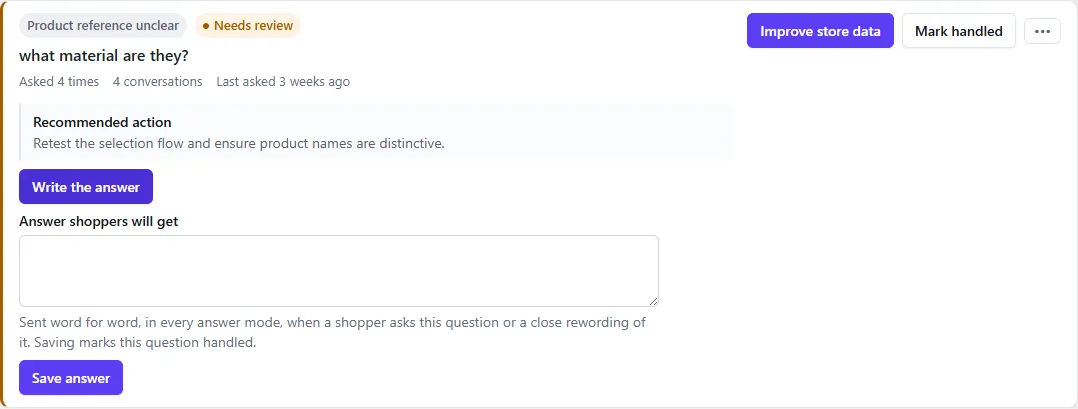
You see “Answer saved. The chat now sends it when shoppers ask this question.” The question moves to Handled and shows Your answer. To change it later, select Edit your answer on the same card.
See, edit and add answers
Section titled “See, edit and add answers”All your answers are listed under Your answers on Geeky Bot → Store Knowledge, in the Answers you wrote card, with how often each was sent. There you can Edit or Delete an answer, or select Add an answer to write one for a question no shopper has asked yet.
How a question is matched
Section titled “How a question is matched”- The same question. Capital letters, accents and punctuation don’t matter, so “Do you ship to Canada?” also matches “do you ship to canada”. It works in any language, including Arabic, Chinese and Japanese.
- A close rewording. Small words such as “do”, “you” and “the” are set aside (in English, Spanish, French and German), and the remaining words of the two questions must be at least 80% the same. “Can you ship to Canada please” matches “Do you ship to Canada?”; “Do you ship to Mexico?” doesn’t.
- Not a single word. A one-word message such as “Canada” only matches a saved question that is that word.
You can save up to 500 answers, each up to 2,000 characters. Saving an answer for a question that already has one replaces it.