
How search works
When a shopper types “black hoodie under $50” into the chat, Geeky Bot reads the request, searches its own product index and shows a few matching product cards. Knowing how this works helps you see why a product does or does not appear, and what to change when it doesn’t.
Search runs on your own server. At the Standard search level no AI service is involved at all. See Search levels for what changes when you turn on Smart Catalog or Rescue.
What Geeky Bot searches
Section titled “What Geeky Bot searches”Geeky Bot keeps its own product search index, built from your WooCommerce products. For each product it stores:
- the product name and SKU
- categories and tags
- attributes, including the colour and size values of every variation
- the short description and the full description
- price, sale price, stock status, average rating and total sales
- with Smart Catalog switched on, the search words written for the product (see Smart Catalog)
The name, categories, tags and attributes decide what a product is. Descriptions only widen the match, so a product that mentions “belt” in passing is not offered to a shopper looking for belts.
The index updates by itself when you add, edit, trash or restore a product, or change its stock. See Product search index for building and rebuilding it.
What is never shown
Section titled “What is never shown”Geeky Bot only shows products a shopper could find in your store. A product is left out when it is:
- not published (draft, pending, private or in the trash)
- password protected
- set to Hidden or Shop only under WooCommerce Catalog visibility
- a single variation (variations are shown through their parent product)
While WooCommerce Coming soon mode hides your store, the chat is hidden from the same visitors. Store managers and visitors with the private preview link still see it.
How a message is read
Section titled “How a message is read”With Understand natural buyer language switched on (the default, under Geeky Bot → Product Search → Synonyms & ranking), Geeky Bot pulls these parts out of the message before searching:
| Part of the message | Example | What happens |
|---|---|---|
| Product type | “hoodie”, “running shoes” | Results must be that kind of product |
| Price | “under $50”, “between 30 and 60”, “cheapest” | Results are limited to the price range, or sorted by price |
| Colour and size | “red”, “size 42”, “XL” | Matched against product and variation attributes |
| Sale | “on sale”, “discounted” | Only products on sale |
| Stock | “in stock”, “available” | Only products in stock or on backorder |
| Exclusions | “not black”, “shoe not size 9” | Products in that colour or size are left out |
| Preferences | “comfortable”, “not too expensive”, “gift” | Used for ranking, never as a hard filter |
| Browsing | “new arrivals”, “popular”, “top rated”, “show sale items” | Lists the newest, best-selling, best-rated or sale products |
Shoppers can write in English, Spanish, French, German, Italian, Portuguese, Dutch, Russian, Arabic, Chinese, Japanese or Korean. Colour, size, price, stock, sale and “not this” filters work in all twelve. See Languages.
Product families
Section titled “Product families”Geeky Bot learns what kinds of products you sell from your product categories. A category called “Beanies” teaches it that “beanie” is a product type, and a parent category such as “Bags” with “Backpacks” under it tells it a backpack is a kind of bag. Built-in synonyms (around 2,000 product words, with translations) and your own Custom synonyms widen what each type covers.
This is why clear category names matter: they are the words Geeky Bot uses to keep a search for “bags” from returning shoes.
Typo repair
Section titled “Typo repair”If a search finds nothing, Geeky Bot checks each word against the words in your own catalog and tries again with the closest spelling. “sunglases” finds sunglasses and “beenie” finds beanies, and the reply tells the shopper which spelling was searched.
To avoid confident wrong answers, words of one or two letters are never corrected, and the first letter must be right. The word list relearns itself a couple of minutes after products change.
Ranking
Section titled “Ranking”Products that pass the filters are scored. A product scores higher when the shopper’s words appear in its name, SKU, categories, tags or attributes, when the requested colour or size matches, and when the whole phrase appears in its title. Smart Catalog words count about as much as a tag, so they bring a product in without outranking one whose own name matches.
Four Ranking boosts add a small extra score. All are on by default:
| Boost | What it favours |
|---|---|
| In-stock products | Products in stock |
| Sale products | Products on sale |
| Well-rated products | Higher average rating |
| Popular products | More total sales |
Two more settings sit beside them. Product match behaviour set to Smart product matches lets Geeky Bot show clearly labelled close matches when no product has the exact colour or size; Exact matches only shows nothing instead. Minimum score (1 to 200, default 1) hides weak matches; raise it only if you see unrelated results.
Follow-up questions
Section titled “Follow-up questions”Geeky Bot remembers the current search. A short follow-up narrows it instead of starting over:
- “black hoodies”, then “under 50” or “products under 50” shows black hoodies under 50.
- “only in stock”, “on sale only”, “size L” and “not red” work the same way.
- “cheaper ones” and “more premium” show lower-priced or higher-end options that still match.
- “go back to previous results” or “undo” restores the results shown before.
A message that names a new product type, such as “hoodie under $50” after a search for shoes, starts a new search with none of the earlier filters.
When nothing matches
Section titled “When nothing matches”Before telling the shopper there is nothing, Geeky Bot tries, in order: close matches without the colour or size (with Smart product matches), typo repair, and products in the requested price range. With Commerce Pro and the Smart Catalog + Rescue level, it can also ask AI which of your product types fit the request. See Search Rescue and learning.
Searches that still find nothing are listed under Needs review on Geeky Bot → Conversations. See Conversations and insights.
Match details on product cards
Section titled “Match details on product cards”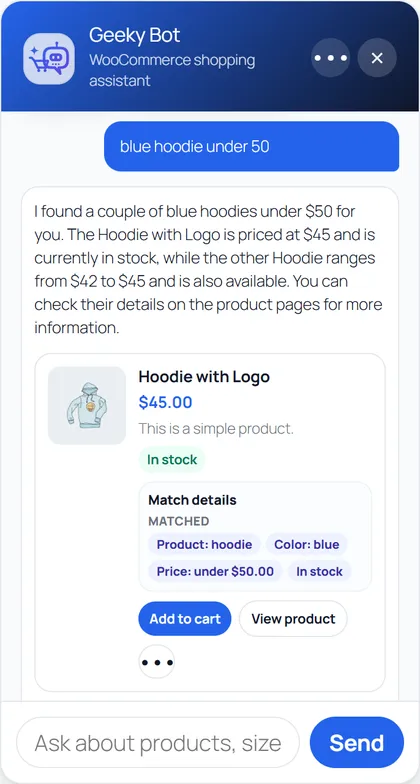
When a shopper asks for something specific, each product card can show a Match details panel. It lists what the product Matched (for example “Product: hoodie”, “Color: Black”, “Price: under $50”, “On sale”, “In stock”) and what is Not confirmed by your product data. If anything is not confirmed, or the result is a close match, the panel is titled Close match details. Plain browsing, such as “latest products”, shows no panel.
Test a phrase
Section titled “Test a phrase”
- Open Geeky Bot → Product Search.
- Type a shopper phrase into Shopper phrase test lab, or select one of the example phrases.
- Select Test search.
- Read how the phrase was understood and why each product matched.