
Test before publishing
Before shoppers see the chat, test it against your own products and policy pages. The Guided Demo screen gives you ready-made questions built from your catalog, and a short checklist covers the rest.
Use the Guided Demo
Section titled “Use the Guided Demo”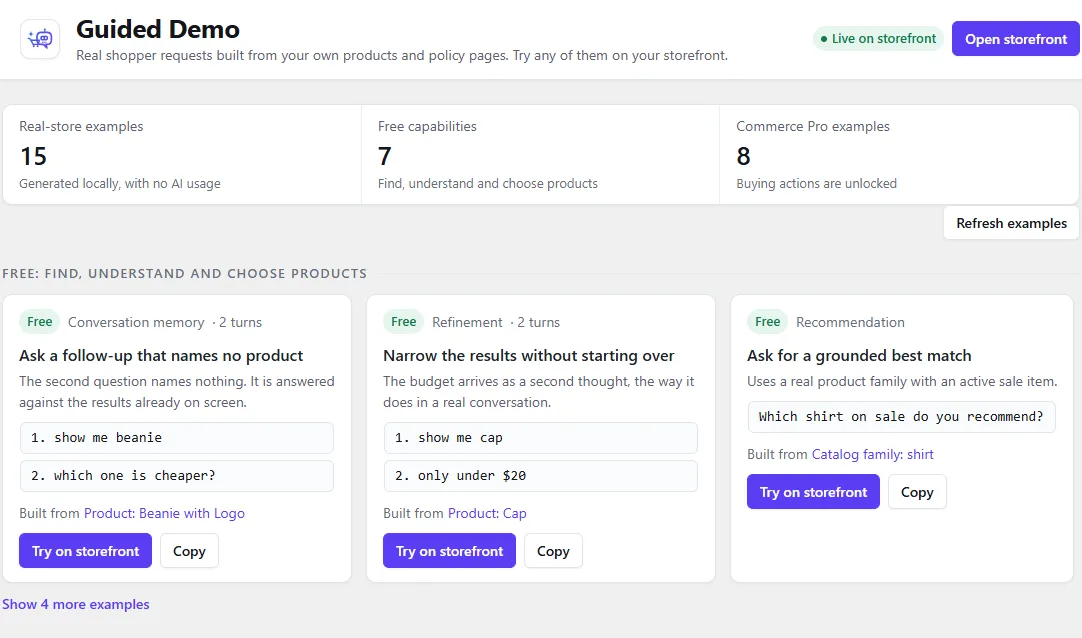
Geeky Bot → Guided Demo builds example shopper questions from your visible, in-stock products and your approved policy pages. The examples are generated on your server with no AI usage.
- Open Geeky Bot → Guided Demo.
- Read the examples. Free examples are grouped under Free: find, understand and choose products. Commerce Pro examples are grouped under Commerce Pro: cart, variations and checkout.
- Select Try on storefront on an example. Your storefront opens with the chat open.
- Send the question and check the answer.
Some examples are short conversations, marked with the number of turns. For these, the first question is sent for you, and each follow-up is placed in the message box once the previous answer arrives. Press Enter to send it.
Other buttons on the screen:
- Copy copies the question, so you can paste it into the chat yourself.
- Refresh examples builds the examples again from your current store data, starting with different products.
- View Commerce Pro appears on Commerce Pro examples when Commerce Pro isn’t active. Those examples show the buying journey but can’t be completed.
The board shows up to 15 examples. Each card says which product or page it was built from.
If the screen shows no examples, it tells you what is missing: WooCommerce, a visible product, or the product search index.
Testing checklist
Section titled “Testing checklist”Clear your site and page caches before final storefront testing. Then check each area on the live storefront.
Product search
- Search for a product by its exact name.
- Search by category, colour, size and a price range, such as “hoodie between 30 and 60”.
- Make a typo in a product name and check that the right product is found.
- Ask for something you don’t sell and check that the answer says so.
To test phrases without opening the storefront, use the Shopper phrase test lab on Geeky Bot → Product Search. Type a phrase and select Test search to see the matches and why each one matched.
Product questions
- Ask about the price and stock of a product shown in the chat.
- Ask a follow-up that doesn’t name the product, such as “Is it in stock?”.
- Ask about a detail your product data doesn’t contain. The answer should say the information isn’t available.
Store knowledge
- Ask a shipping, returns or refund question covered by an approved page.
- Ask a policy question none of your pages answers. The chat should not make one up.
Visibility
- Check that draft, private, password-protected and hidden products never appear. See Product search index.
Mobile
- Open the storefront on a phone. Check the button position, the chat window, product cards and the keyboard.
Commerce Pro (if active)
- Add a simple product and a variable product to the cart from the chat, then go to checkout.
Turn the widget on or off
Section titled “Turn the widget on or off”The widget is on by default after installation.
- Open Geeky Bot → Storefront Widget.
- In Basics, switch Show the assistant on my store on or off.
- Select Save widget.
The header of each Geeky Bot screen shows Live on storefront or Widget is off. While the widget is off, Try on storefront on the Guided Demo is unavailable, but you can still copy examples.