
Leads and handoff
When a shopper wants a person, Commerce Pro opens a contact form in the chat. The shopper leaves a name, email and question, and your store receives it by email so someone can reply. It catches complaints and questions the assistant can’t answer, instead of losing them.
Switch the contact form on
Section titled “Switch the contact form on”The form needs both switches on.
- Open Geeky Bot → Commerce Pro.
- Select the Lead and handoff tab.
- Turn on Lead capture and Human handoff.
- In Send leads to, enter the address that should receive contact requests. Leave it empty to use the WordPress administration email address.
- Select Save settings.
Both switches are on when you first install Commerce Pro. The Handoff readiness badge shows ✓ only when both are on.
How the form opens
Section titled “How the form opens”The form opens in three ways:
- Asking for a person. For example “talk to a human”, “I want to speak to someone”, “I have a problem with my order”, “I want to complain”, “live support” or “contact support”. The chat says it can pass the request to the store team and opens the form, with the shopper’s message already filled in as the question.
- From a product card. Each card’s More actions menu (•••) has a Talk to a human button. The form opens with “I have a question about [product].” filled in.
- Typing “call me” or “email me”.
These phrases are recognised in English only.
The chat doesn’t collect contact details from the message itself. Nothing reaches you until the shopper fills in the form and sends it.
What the shopper fills in
Section titled “What the shopper fills in”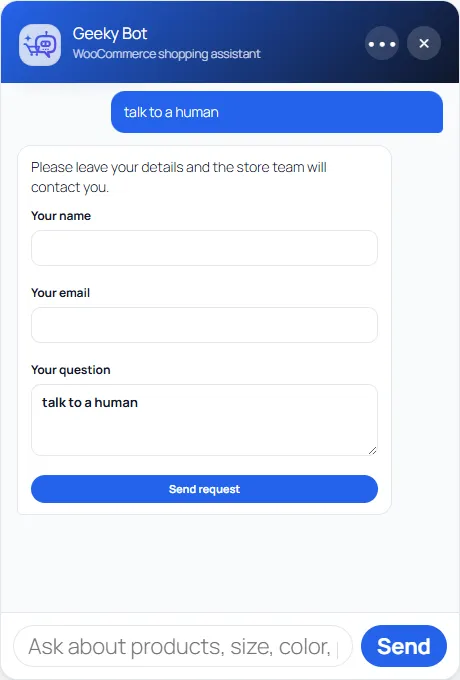
| Field | Notes |
|---|---|
| Your name | Required. |
| Your email | Required, and must be a valid address. |
| Your question | Optional, up to 2,000 characters. |
After Send request, the shopper sees “Thanks. A store team member will contact you soon.”
What the store receives
Section titled “What the store receives”Each request is sent by email to the Send leads to address:
- Subject: “New Geeky Bot lead from [your site name]”.
- Body: the lead ID, name, email, message, and “Source: Geeky Bot Commerce Pro”.
- Reply-To: the shopper’s name and email, so you can reply straight from your inbox.
The request is also saved in your WordPress database with the time, the chat session and, for signed-in shoppers, their user account.
Recent leads
Section titled “Recent leads”The Recent leads card at the bottom of Geeky Bot → Commerce Pro lists the last 10 requests with Name, Email, the start of the Message, and Date. Select an email address to write to the shopper. Each request also counts toward Leads in the key numbers.
When the form is off
Section titled “When the form is off”If either switch is off, there is no Talk to a human button and a request for a person gets “I can’t pass messages to the store team from the chat.” If one of your Store Knowledge pages has “Contact” in its title, the reply links that page. See Store Knowledge.
Privacy
Section titled “Privacy”Leads hold personal data, so treat them like any other customer contact.
- Export and erase. Commerce Pro adds “Geeky Bot Commerce Pro leads and analytics” to the WordPress personal data tools under Tools → Export Personal Data and Tools → Erase Personal Data. Erasing removes every lead with that email address or user account, and removes the person’s account and session from Commerce Pro’s activity records.
- Retention. Leads are not deleted by Geeky Bot’s conversation retention setting. They stay until you erase them with the personal data tools, or until you uninstall Commerce Pro with Delete data on uninstall turned on.
See Privacy and data.
Limits
Section titled “Limits”To stop spam, each visitor can send 5 contact requests in 15 minutes. After that, the chat says “Too many contact requests. Please wait a few minutes and try again.” Signed-in administrators and shop managers aren’t limited.