
Conversations and insights
Geeky Bot → Conversations shows what shoppers asked and what the chat answered, and collects the questions it couldn’t answer from your data. Geeky Bot → Analytics sums up the last 30 days. Use both to find gaps in your catalog and policy pages.
Both screens need Save conversation history switched on under Geeky Bot → AI & Privacy. For guests, Save guest conversations must be on too. See Privacy and data.
What is stored
Section titled “What is stored”For each conversation Geeky Bot stores:
- the shopper’s messages (up to 1,000 characters each) and the chat’s replies, with the products shown and the detected intent
- the questions it couldn’t answer, with a reason
- product and policy-source clicks from the chat
- whether the shopper was logged in (Registered shopper) or a guest (Guest shopper)
Conversations older than the Retention days setting are deleted automatically.
Read a conversation
Section titled “Read a conversation”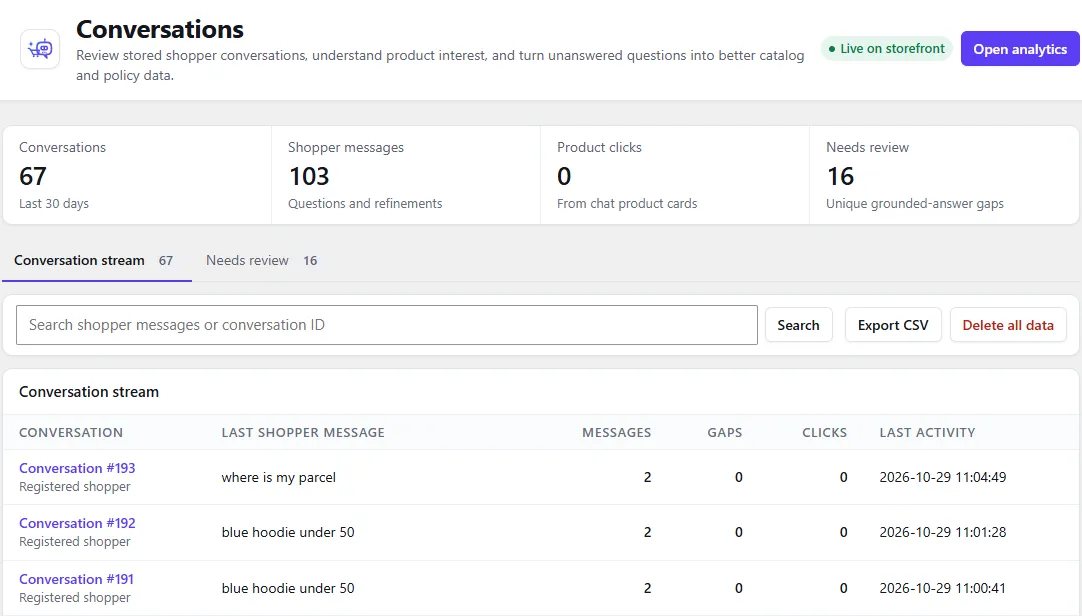
- Open Geeky Bot → Conversations.
- Stay on the Conversation stream tab.
- Optional: search by shopper message or conversation ID, then select Search.
- Select a conversation to open it.
The list shows Last shopper message, Messages, Gaps (unanswered questions), Clicks and Last activity. An open conversation shows the full transcript, the products shown with each reply, and Shopper interactions: each Product opened or Policy source opened.
Work through the Needs review queue
Section titled “Work through the Needs review queue”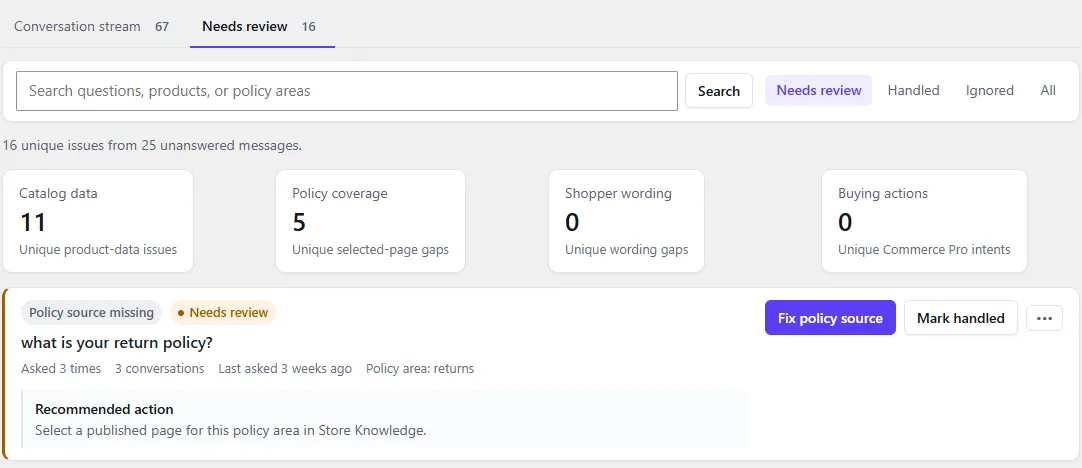
The Needs review tab groups unanswered questions, so the same question asked ten times appears once.
- Open Geeky Bot → Conversations and select Needs review.
- Filter by Needs review, Handled, Ignored or All, or search questions, products or policy areas.
- Read each row: the question, the reason, Asked … times, the products or policy area involved, and the Recommended action.
- Fix the data, then select Retest phrase. It opens the phrase in the Shopper phrase test lab on Geeky Bot → Product Search.
- Select Mark handled when it works, or open the ••• menu and select Ignore issue.
- To bring an item back, select Restore to review.
Four counts at the top sort the open items:
| Count | What it covers |
|---|---|
| Catalog data | Unique product-data issues |
| Policy coverage | Unique gaps in your selected policy pages |
| Shopper wording | Unique wording gaps, usually fixed with a synonym |
| Buying actions | Unique cart, order or other Commerce Pro requests |
Reasons and their recommended fixes:
| Reason | Recommended action |
|---|---|
| No matching product | Review product titles, categories, attributes, stock, price, and common synonyms. |
| Product detail missing | Add the missing fact to the WooCommerce product description or attributes. |
| Product reference unclear | Retest the selection flow and ensure product names are distinctive. |
| Policy source missing | Select a published page for this policy area in Store Knowledge. |
| Policy detail missing | Add a clear answer to the selected policy page and refresh the knowledge index. |
| No grounded answer | Check whether the phrase belongs to products, policy content, or a Commerce Pro action. |
See Catalog quality and synonyms and Store Knowledge for the fixes.
Read the Analytics screen
Section titled “Read the Analytics screen”Geeky Bot → Analytics covers the last 30 days and compares each number with the 30 days before.
| Card | What it shows |
|---|---|
| Conversations | Conversations started |
| Shopper messages | Messages shoppers sent, and the average per conversation |
| Product clicks | Products opened from product cards in the chat |
| Needs attention | Grounded-answer gaps logged (every time, not unique questions) |
| Daily shopper messages | A chart of messages per day against the previous period |
| Why answers were unavailable | The top five reasons, with the action for the most common one and Open unanswered questions |
| Most-opened products | The eight products opened most from the chat, with Clicks |
| Insight without profiling | Your retention period and privacy tools |
Analytics never shows IP hashes, browser fingerprints or API keys. Product clicks show interest, not sales.
With Commerce Pro, the add-on reports buying actions such as add to cart, checkout handoff and leads. See Sales insights.
Export conversations
Section titled “Export conversations”- Open Geeky Bot → Conversations.
- Select Export CSV for all conversations, or open one conversation and select Export this conversation.
Export CSV contains the 5,000 most recent messages, with the columns conversation, session_created_at, session_updated_at, direction, message, intent and created_at. A single-conversation export has conversation, direction, message, intent, products and created_at. Cells that a spreadsheet could read as a formula are made safe.
Delete conversations
Section titled “Delete conversations”To delete one conversation, open it and select Delete conversation. This also deletes its unanswered questions and click events.
To delete everything, select Delete all data on the Conversation stream tab and confirm.