
Setup screen
The Setup screen walks you through launching Geeky Bot in seven steps, in the order they depend on each other. Every check reads your live store, so you can leave the screen and come back later without losing progress.
Open it from Geeky Bot → Setup. Geeky Bot also opens it for you the first time you activate the plugin.
Statuses
Section titled “Statuses”Each step shows one status:
| Status | What it means |
|---|---|
| Ready | The step is done. |
| Not configured | The step needs your attention. |
| Blocked | The step can’t run until an earlier one is done, usually WooCommerce. |
| Optional | You can launch without it. |
When a step is waiting on another one, it shows what it is waiting for instead of a button, for example Waiting for WooCommerce or Waiting for product index.
The Launch progress card shows a percentage and a count of ready checks. Optional steps count for half. The same readiness score is used elsewhere in Geeky Bot.
The seven steps
Section titled “The seven steps”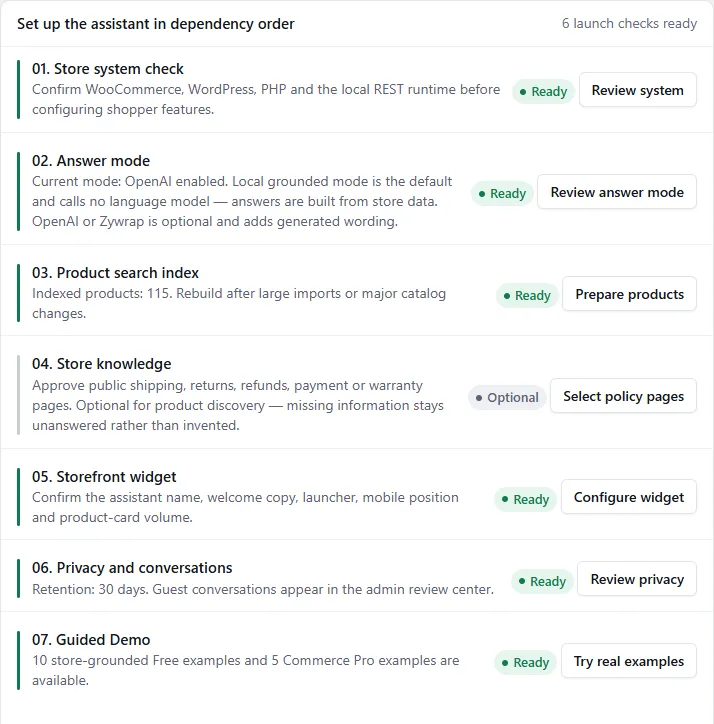
| Step | Ready when | Button and where it goes |
|---|---|---|
| 01. Store system check | WooCommerce is active and every system check passes | Review system jumps to the System checks card. Without WooCommerce: Install WooCommerce or Activate WooCommerce. |
| 02. Answer mode | Local grounded mode is selected, or the AI service you chose has its key saved. Otherwise it shows Optional. | Review answer mode opens Geeky Bot → AI & Privacy. |
| 03. Product search index | At least one product is in the index | Prepare products opens Geeky Bot → Product Search. |
| 04. Store knowledge | At least one policy page is selected. Otherwise it shows Optional. | Select policy pages opens Geeky Bot → Store Knowledge. |
| 05. Storefront widget | The widget is switched on | Configure widget opens Geeky Bot → Storefront Widget. |
| 06. Privacy and conversations | Chat history and a retention period of at least one day are set | Review privacy opens the privacy section of Geeky Bot → AI & Privacy. |
| 07. Guided Demo | At least three Free examples can be built from your products | Try real examples opens Geeky Bot → Guided Demo. |
Notes on some steps:
- Answer mode shows the current mode, for example “Local grounded mode”, “OpenAI enabled” or “OpenAI selected but API key missing”. Local grounded mode is the default and calls no language model. See Answer modes.
- Product search index shows how many products are indexed. It is Blocked until WooCommerce is active. See Product search index.
- Store knowledge is optional for product search. Without approved pages, policy questions stay unanswered rather than invented. See Store Knowledge.
- Privacy and conversations shows your retention period in days, and whether guest conversations appear in the admin or stay in the shopper’s browser.
- Guided Demo shows how many Free and Commerce Pro examples are available. It is Blocked until WooCommerce has at least one visible, indexed product.
The button at the top of the screen always points to the next thing to do: install or activate WooCommerce, Prepare products, or Open Guided Demo.
System checks
Section titled “System checks”The System checks card runs on your server only. It makes no outside requests.
| Check | What it looks at |
|---|---|
| WooCommerce runtime | WooCommerce is active, so products, prices and stock are available. |
| WordPress REST API | The storefront chat can use your site’s REST API. |
| PHP compatibility | PHP 7.4 or later. |
| WordPress compatibility | WordPress 6.0 or later. |
| Permalink mode | Readable permalinks are on. Plain permalinks work but show Check. |
Each check shows OK, Check or Failed.
Finish or skip the setup review
Section titled “Finish or skip the setup review”The Review status card records whether you have reviewed setup. It doesn’t switch any feature on or off, and doesn’t remove settings.
- Work through the steps you need.
- Select Finish setup review, or Skip for now to come back later.
The Setup screen stays in the Geeky Bot menu either way.