
Discount codes
Commerce Pro can answer “do you have a promo code?” with codes you choose. The chat only ever shares codes from your own list, and only while WooCommerce still accepts them, so shoppers aren’t sent to checkout with a code that fails.
Share coupon codes in the chat
Section titled “Share coupon codes in the chat”- Create the coupon in WooCommerce first, under Marketing → Coupons, and publish it.
- Open Geeky Bot → Commerce Pro.
- Select the Sales assistance tab.
- Turn on Coupon suggestions.
- In Public coupon codes, enter one code per line.
- Select Save settings.
You can list up to 20 codes. Duplicates are removed when you save. If Coupon suggestions is on but the list is empty, the screen warns “Suggestions are on, but no codes are listed yet, so there is nothing to offer.”
When a code is shown
Section titled “When a code is shown”A listed code is shown only while the WooCommerce coupon:
- exists and is published,
- hasn’t passed its expiry date, and
- hasn’t reached its usage limit.
A code that fails any of these is skipped without telling the shopper. You don’t need to remove expired codes from the list, but it keeps the list tidy.
The chat doesn’t check a coupon’s other restrictions, such as allowed products, allowed emails or per-customer limits. WooCommerce still checks them all when the shopper enters the code at checkout. If a coupon has a minimum spend, the chat mentions it.
What the shopper sees
Section titled “What the shopper sees”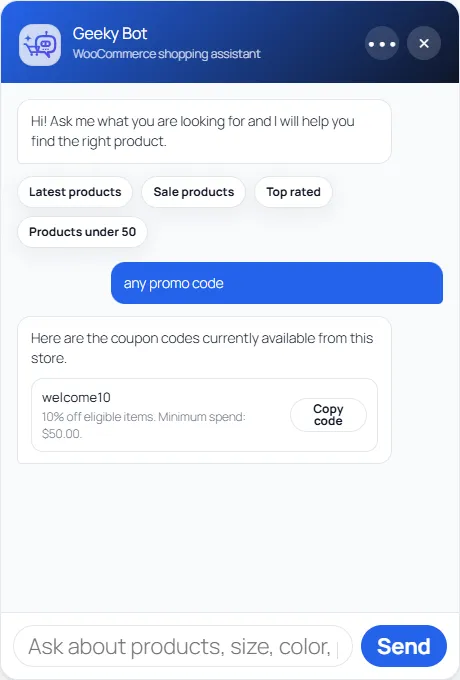
When a shopper mentions a coupon, promo code, voucher or discount code, the chat lists up to five of your valid codes. Each shows the code, a short description built from the coupon’s discount type, amount and minimum spend, such as “10% off eligible items” or “Minimum spend: $50.00.”, and a Copy code button.
If none of your codes is valid right now, the chat says “I couldn’t find a coupon code available to share right now.”
What the chat never does
Section titled “What the chat never does”- Invent codes. Only codes in your Public coupon codes list can be shown. Geeky Bot’s AI instructions also forbid inventing coupons in written answers.
- Apply codes. Codes are never added to the cart automatically. The shopper copies the code and enters it at checkout.
- Share private codes. A coupon that isn’t in your list is never shown, even if it is published in WooCommerce. Keep codes meant for one customer, staff or partners off the list.
Coupon views
Section titled “Coupon views”Each time a shopper asks the chat for codes, it counts toward Coupon views on the Commerce Pro screen. See Sales insights.