
Commerce Pro overview
Commerce Pro is the paid add-on for Geeky Bot. It turns product conversations into buying actions: shoppers choose options, add to the cart, check out and get help with their own orders without leaving the chat.
What Commerce Pro adds
Section titled “What Commerce Pro adds”- Buying actions: in-chat variation selection, add to cart (including WooCommerce Subscriptions products), cart view, quantity changes and removals, and a handoff to your normal WooCommerce checkout. See Cart and checkout.
- Order help for signed-in customers, limited to their own orders. See Order help.
- Decision help: side-by-side product comparison, alternatives and add-ons from your WooCommerce upsells, cross-sells and related products, and discount codes you approve.
- Sales rules and AI guardrails: notes for products, categories or the whole store, tone, reply language and claim limits. See Sales rules and guardrails.
- Leads and handoff: a contact form in the chat that emails the store. See Leads and handoff.
- Sales insights: buying-action counts and revenue from items added in the chat. See Sales insights.
- Search Rescue and learning from missed searches, which live in Geeky Bot but only switch on when Commerce Pro is active. See Rescue and learning.
For a side-by-side list of free and paid features, see Free and Commerce Pro. For prices, see geekybot.com/pricing.
Requirements
Section titled “Requirements”- Geeky Bot 2.1.2 or later. Commerce Pro 2.1.2 checks this against
GBCP_MIN_CORE_VERSIONand stays inactive with older versions, showing “Geeky Bot Commerce Pro requires Geeky Bot core 2.1.2 or newer.” - WooCommerce, active. Without it the Commerce Pro screen shows “WooCommerce is not active. Commerce Pro buying actions need WooCommerce.”
- WordPress 6.0 or later and PHP 7.4 or later.
- A valid Commerce Pro licence for the site.
See Requirements for the full list.
Install with your licence key
Section titled “Install with your licence key”- Install and activate Geeky Bot from WordPress.org. See Installation.
- Copy your licence key from your account on geekybot.com.
- Open Geeky Bot → License.
- Paste the key and select Activate and install.
- Wait while Geeky Bot downloads Commerce Pro from geekybot.com and switches it on. This can take up to a minute.
- Open Geeky Bot → Commerce Pro to review the settings.
If the install step can’t run, the License screen tells you why. For example, your WordPress account may not be allowed to install plugins, or the licence may need renewing before downloads are included.
Install from a zip file
Section titled “Install from a zip file”- Download the Commerce Pro zip from your account on geekybot.com.
- In WordPress, open Plugins → Add New → Upload Plugin.
- Upload the zip and activate the plugin.
- Open Geeky Bot → License, enter your key and activate it.
Commerce Pro stays locked until the licence is active for the site. The Commerce Pro screen then shows “Activate Commerce Pro on this site” with an Open license screen button. Free product discovery keeps working while it’s locked.
The Commerce Pro screen
Section titled “The Commerce Pro screen”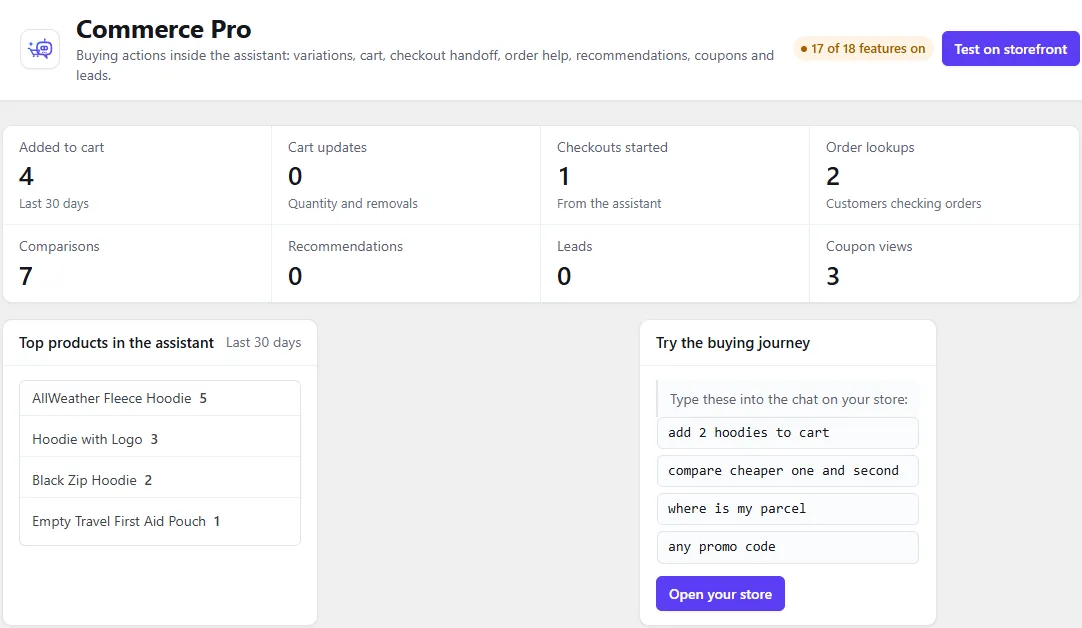
Open Geeky Bot → Commerce Pro. From top to bottom:
- Header: the status shows how many features are on, for example “16 of 18 features on”. Test on storefront opens your store.
- Key numbers for the last 30 days: Added to cart, Cart updates, Checkouts started, Order lookups, Comparisons, Recommendations, Leads and Coupon views. See Sales insights.
- Top products in the assistant: the products shoppers clicked, compared or added to cart most through the chat.
- Try the buying journey: sample phrases to type into the chat on your store, and an Open your store button.
- Settings, with readiness badges and four tabs.
- Recent leads and Copy settings to another site.
Settings tabs
Section titled “Settings tabs”| Tab | Settings |
|---|---|
| Buying actions | Add to cart, Variation selection, Cart requests, Cart quantity controls, Checkout handoff, Order lookup |
| Sales assistance | Product comparison, Smart recommendations, Coupon suggestions, Public coupon codes, Sales rules, Rules, Cart reminders, Reminder delay (seconds) |
| Lead and handoff | Lead capture, Human handoff, Send leads to |
| AI guardrails | Multilingual replies, Language, Forced language, Tone, Extra guardrails, Topics to avoid claims on, Approved guidance, Product activity analytics |
All switches are on when you first install Commerce Pro. One Save settings button saves every tab, and changes apply to the chat on your store straight away.
Readiness badges
Section titled “Readiness badges”Above the tabs, five badges show ✓ when everything they need is on and ! when something needs review:
| Badge | Ready when these are on |
|---|---|
| Buying | Add to cart and Variation selection, with WooCommerce active |
| Cart and checkout | Cart requests, Cart quantity controls and Checkout handoff, with WooCommerce active |
| Sales help | Product comparison and Smart recommendations |
| Handoff | Lead capture and Human handoff |
| Guardrails | Extra guardrails and Product activity analytics |
Open What’s switched on below the tabs to see every feature with its state. It also counts whether you have added coupon codes and written sales rules. Some rows show On, inactive with a reason, for example when Multilingual replies is on but Geeky Bot runs in local mode, which never generates text. See Answer modes.
Copy settings to another site
Section titled “Copy settings to another site”Use this to move your Commerce Pro settings from staging to the live store.
- On the source site, open Geeky Bot → Commerce Pro.
- In Copy settings to another site, select Download settings file. You get a
.jsonfile. - On the other site, open Geeky Bot → Commerce Pro.
- Choose the file and select Import.
The file holds only Commerce Pro settings, including the Send leads to address. It never contains licence keys or other secrets. Importing replaces all Commerce Pro settings on that site, and any switch missing from the file is turned off. If the file isn’t a valid Commerce Pro settings file, you see “Settings import failed.”