
Storefront Widget
The Storefront Widget screen controls everything shoppers see of the chat: its name and messages, its look, the button that opens it, the timed invitation and the starter prompts. A live preview shows your changes as you type.
Change the widget
Section titled “Change the widget”- Open Geeky Bot → Storefront Widget.
- Change the settings in Basics, Look and branding, Shopper invitation and Starter prompts. The Live preview on the right updates as you type.
- Select Save widget.
- Select Test on storefront to check it on your store.
Basics
Section titled “Basics”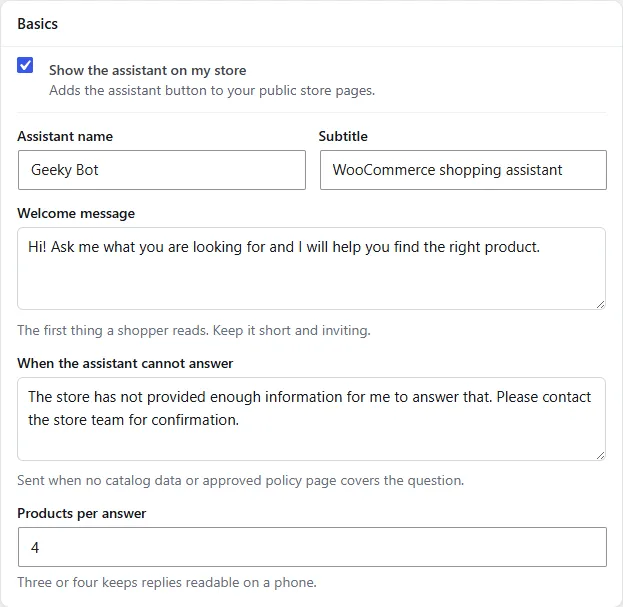
| Setting | What it does |
|---|---|
| Show the assistant on my store | Adds the assistant button to your public store pages. On by default. |
| Assistant name | Shown in the chat header. Default “Geeky Bot”. |
| Subtitle | Shown below the name. Default “WooCommerce shopping assistant”. |
| Welcome message | The first message a shopper reads when the chat opens. Default “Hi! Ask me what you are looking for and I will help you find the right product.” |
| When the assistant cannot answer | Sent when no catalog data or approved policy page covers the question. Default “The store has not provided enough information for me to answer that. Please contact the store team for confirmation.” |
| Products per answer | How many product cards a reply can show, from 1 to 8. Default 4. Three or four keeps replies readable on a phone. |
A reply shows its first three product cards, with a button such as “Show 1 more product” for the rest.
Look and branding
Section titled “Look and branding”| Setting | What it does |
|---|---|
| Accent color | Colour of the buttons and header. Default blue (#2563eb). |
| Position on screen | Right (default) or Left bottom corner. |
| Colour mode | Light (default), Dark, or Match the shopper device. Choose the last one if your storefront has a dark theme. |
| Button shape | Circle (default) or Rounded square. |
| Icon | The picture on the chat button: Default GeekyBot icon, Store logo (your theme’s site logo) or Custom image. |
| Custom icon | The Media Library image used when Icon is Custom image. PNG, JPG, WEBP or GIF. |
| Style | Icon only (default) or Icon and text. Adding text can reassure first-time visitors. |
| Button text | The text beside the icon. Used only when Style is Icon and text. Default “Ask about products”. |
| Logo | The picture in the chat header: Same as launcher (default), Store logo, Custom image or No logo. |
| Custom header logo | The Media Library image used when Logo is Custom image. |
| Header style | Gradient (default) or Solid accent. |
| Show an icon beside the shopper’s messages | Adds a small icon to each shopper message. Off by default. |
Shopper invitation
Section titled “Shopper invitation”The invitation is one short message that appears above the chat button after a delay, to invite shoppers to ask. It shows once per browser session, and the chat stays closed until the shopper opens it.
| Setting | What it does |
|---|---|
| Show the invitation | Turns the invitation on or off. On by default. |
| Show it after | Seconds after the page loads, from 3 to 60. Default 12. Ten to fifteen works well. |
| Invitation message | Up to 160 characters. Default “Need help choosing? Ask me about products, prices, or options.” |
Starter prompts
Section titled “Starter prompts”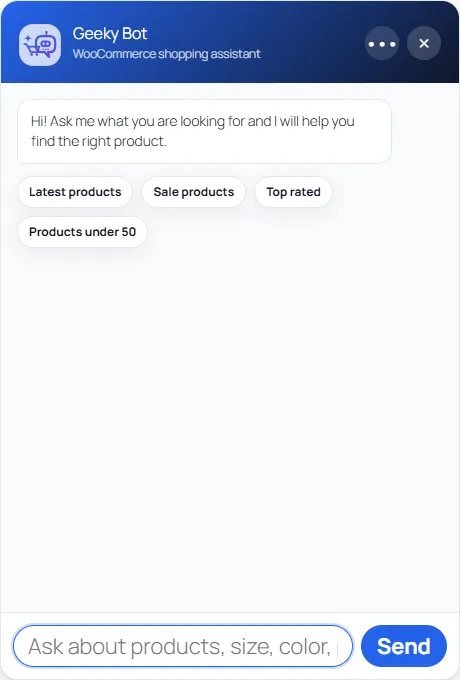
Starter prompts are buttons under the welcome message. Selecting one sends its text as the shopper’s question.
Write one prompt per line, the way a customer would ask. The first four appear as buttons. Leave the box empty for the defaults: “Latest products”, “Sale products”, “Top rated” and “Products under 50”.
Where the widget appears
Section titled “Where the widget appears”The widget shows on every public page of your site while Show the assistant on my store is on. It never shows in the WordPress admin.
While WooCommerce “Coming soon” mode hides your store, the widget is hidden too. Administrators, shop managers and visitors with the private preview link still see it.
On phones
Section titled “On phones”On screens 480 pixels wide or narrower:
- The open chat fills the width of the screen, with a small margin on each side, whichever position you chose.
- It is up to 640 pixels tall and never taller than the screen.
- The chat button is slightly smaller, and button text is kept within the screen width.
- Product cards use smaller images.
For shoppers
Section titled “For shoppers”- The conversation is kept in the shopper’s browser, so it continues across pages and tabs of your site. This follows Save conversation history and Retention days on Geeky Bot → AI & Privacy: with history off, nothing is kept, and older conversations are dropped after the retention period.
- Clear conversation, in the More actions menu, starts a new conversation.
- Escape closes the chat and returns focus to the button.
- The widget respects the shopper’s reduced-motion setting.
Default texts you haven’t edited show in your site’s language. See Languages.