
Product comparison
Product comparison lets shoppers put two to four products side by side in the chat. It helps a shopper who has narrowed the choice down decide without opening several product pages.
Switch comparison on
Section titled “Switch comparison on”- Open Geeky Bot → Commerce Pro.
- Select the Sales assistance tab.
- Turn on Product comparison.
- Select Save settings.
It’s on when you first install Commerce Pro. Without Commerce Pro, Geeky Bot tells shoppers that comparison isn’t available.
How shoppers ask for a comparison
Section titled “How shoppers ask for a comparison”Shoppers can compare in three ways:
- From a product card. Open the More actions menu (•••) on a card and select Compare. On the next product, the same menu says Compare with selected. Once two products are picked, the comparison builds by itself.
- By typing about the products shown. For example “compare the first and third”, “compare cheaper one and second” or “compare the cheapest two”. Positions and “cheapest” refer to the products in the last results.
- By naming products shown in the chat, for example “compare the Trek 32L and the Osprey 30”.
A comparison holds up to four products. If a shopper picks a fifth from the cards, the oldest one drops out. Typing “compare” on its own shows the products picked so far, with a Clear button, and Compare now once two are picked.
What the comparison shows
Section titled “What the comparison shows”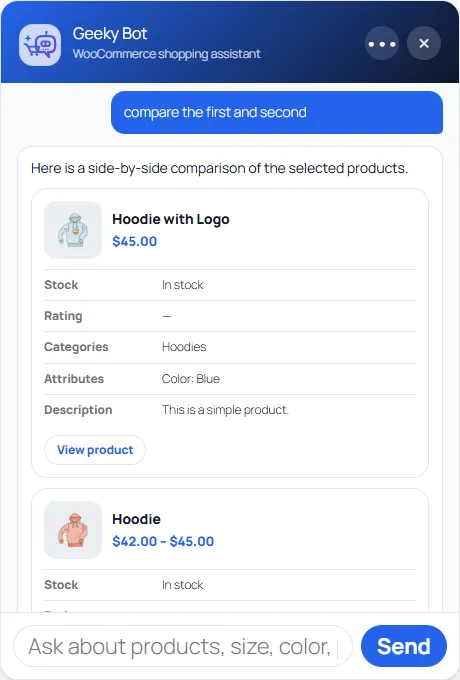
Each product gets a card with its picture, name and price, then these rows:
| Row | Where it comes from |
|---|---|
| Stock | In stock, Out of stock or On backorder. A variable product counts as in stock when any of its variations is. |
| Rating | The average customer rating out of 5. |
| Categories | The product’s WooCommerce categories. |
| Attributes | The product’s visible attributes, up to five values each. |
| Description | The start of the short description. |
Each card ends with a View product link. Everything comes from your WooCommerce product data, so the comparison is only as complete as your catalog. A row with no data shows a dash. See Catalog quality and synonyms.
Follow-up questions
Section titled “Follow-up questions”After a comparison, a shopper can ask which one is cheaper, which has the better rating, or what the difference is. The chat answers from the prices and ratings in the catalog, for example “The Trek 32L is cheaper at $89, compared with the Osprey 30 at $120.” If a price is missing, it says it can’t confirm which is cheaper.
Shoppers can also ask about one detail across the products shown, such as “which has more capacity?” or “which is lightest?”. The chat reads capacity, battery life, weight, size, material and warmth from your product attributes and the WooCommerce weight field. It never guesses a value: products without that detail are named as missing.
While Product comparison is off, these questions aren’t answered as comparisons either. Before Commerce Pro 2.1.3 they were answered even with the switch off.
When the chat can’t compare
Section titled “When the chat can’t compare”| Situation | What the shopper sees |
|---|---|
| Fewer than two different products picked | “Choose at least two different shown products to compare.” |
| Products are hidden, unpublished or no longer exist | “I couldn’t find enough available products to compare.” |
| No products shown yet | “Search for a product first, then ask me to compare the first, second, third, cheapest, or other shown options.” |
| Product comparison is off | “Product comparison is unavailable right now. You can still open the products below to review their details.” |
Only published products that are visible in your catalog can be compared. Typed comparison requests are recognised in English only.