
Cart and checkout
With Commerce Pro, shoppers can pick product options, add products to the cart and manage the cart inside the chat, then go to your normal WooCommerce checkout. Every action uses the real WooCommerce cart, so what they add in the chat is what they see on the cart page.
Switch on buying actions
Section titled “Switch on buying actions”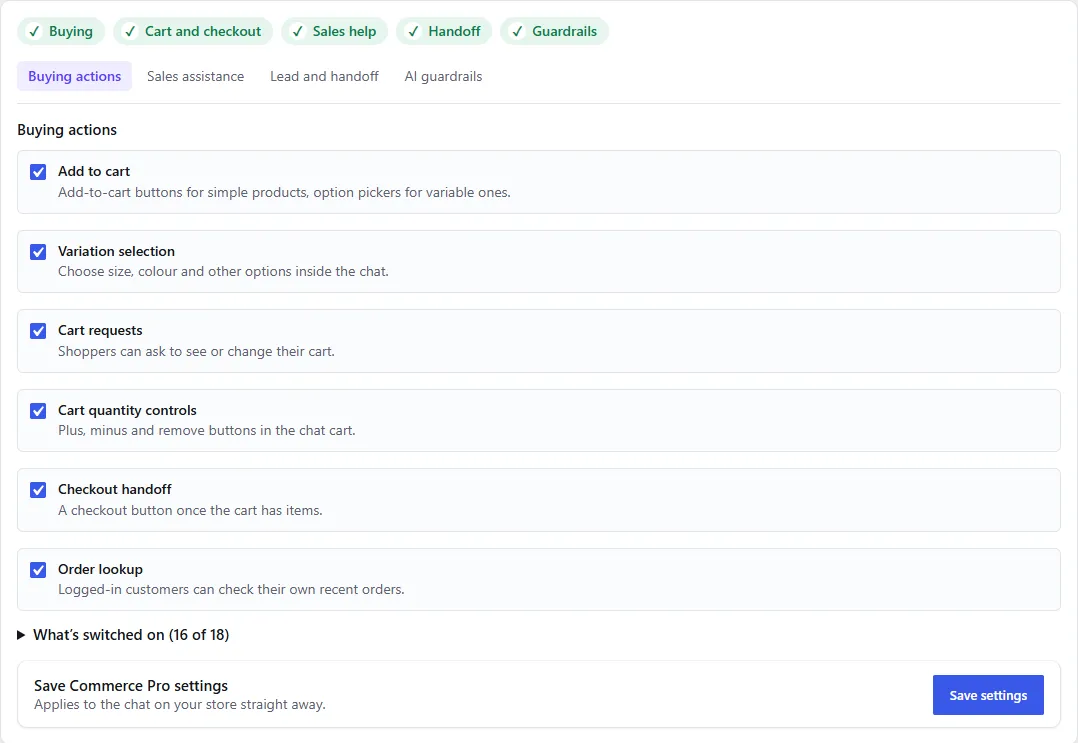
- Open Geeky Bot → Commerce Pro.
- Select the Buying actions tab.
- Turn on the switches you want:
| Setting | What it does |
|---|---|
| Add to cart | Shows an Add to cart button on simple products and an option picker for variable ones. |
| Variation selection | Lets shoppers choose size, colour and other options inside the chat. |
| Cart requests | Lets shoppers ask to see or change their cart. |
| Cart quantity controls | Shows plus, minus and Remove buttons in the chat cart. |
| Checkout handoff | Shows a Checkout button once the cart has items. |
- Select Save settings.
All five are on when you first install Commerce Pro.
Add products to the cart
Section titled “Add products to the cart”What a product card in the chat shows depends on the product type:
- Simple products that are in stock and purchasable get an Add to cart button.
- Variable products get a Choose options button.
- Grouped products get View bundle, and external products get View product. Shoppers buy these on the product page.
Shoppers can also type a request, for example “add 2 hoodies to cart” or “add the second one to my cart”. The chat understands a product’s name, its position in the results shown, or “it” for the product just mentioned. Quantities go up to 99.
Only published products that are visible in your catalog can be added. The chat checks stock and whether the product can be bought before adding it, and runs the same purchase rules as your store’s own Add to cart button, so limits set by WooCommerce or other plugins still apply.
WooCommerce Subscriptions products
Section titled “WooCommerce Subscriptions products”Since Commerce Pro 2.1.2, products from WooCommerce Subscriptions work like any other product. A simple subscription gets the Add to cart button, and a request such as “add the 5 sites plan to my cart” works. A variable subscription gets Choose options.
Choose product options
Section titled “Choose product options”When a shopper selects Choose options, the chat shows an option picker:
- One row of buttons for each attribute, such as Size and Colour.
- Combinations that are out of stock or can’t be bought are greyed out, so shoppers can only pick a real variation.
- A Quantity field, from 1 to 99.
- Add selected option, Clear, View product page and Close buttons.
The picture and price update to match the chosen variation. Shoppers can also name the option when they type, for example “choose Black for the water bottle and add it to my cart”. If a request for a variable product names no option, the chat opens the picker or asks which option they want.
Different option combinations stay as separate cart lines, so a red and a blue version of the same product don’t merge.
View and change the cart
Section titled “View and change the cart”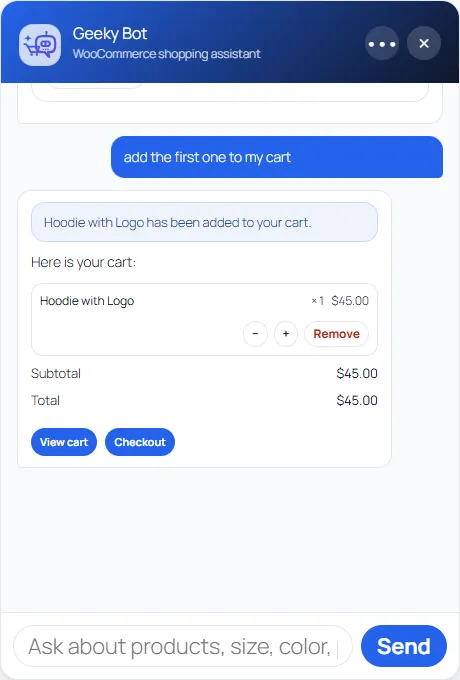
Shoppers can type “show my cart” or “what’s in my cart”. The chat shows each line with its options, quantity and line price, then the Subtotal and Total, with View cart and Checkout buttons.
With Cart quantity controls on, each line has plus, minus and Remove buttons. Shoppers can also type requests such as “remove the first product from my cart”. Positions in a cart request count the lines in the cart, not the last search results. After each change, the chat says what the cart now holds.
Hand off to checkout
Section titled “Hand off to checkout”Shoppers can type “checkout”, “go to checkout” or “proceed to checkout”, or select the Checkout button under any cart message. The chat shows the cart total and links to your WooCommerce checkout page.
Payment never happens in the chat. Shoppers pay on your normal checkout page, with your usual payment methods, shipping and taxes. Both the classic checkout and the Checkout block work.
With Checkout handoff off, the Checkout button is hidden, and a typed checkout request gets “Checkout is handled on the store pages. Your cart is ready when you are.”
Remind shoppers about their cart
Section titled “Remind shoppers about their cart”The cart reminder is a message in the chat, not an email. It appears once per visit when a shopper has items in the cart and the chat has been quiet for the delay you set. It says “You still have items in your cart. Ready to continue?” with the item count, the total, and View cart and Checkout buttons.
- Open Geeky Bot → Commerce Pro.
- Select the Sales assistance tab.
- Turn on Cart reminders.
- Set Reminder delay (seconds) between 15 and 600. The default is 45.
- Select Save settings.
The reminder also needs Cart requests on. The delay counts from the last thing the shopper or the assistant did, so the reminder doesn’t interrupt an active search.
Store notices in the chat
Section titled “Store notices in the chat”When WooCommerce or another plugin refuses an add or changes the cart because of it, the chat repeats what the store said. For example, if your store allows one subscription at a time, WooCommerce Subscriptions removes the old one, and the chat reports that instead of only “has been added”. The notice is then cleared so the next page doesn’t show it again.
Commands are English-only
Section titled “Commands are English-only”Typed cart and checkout requests are recognised in English only. Shoppers who write in another language can still use the buttons on product cards and in the chat cart. See Languages.
Limits
Section titled “Limits”Each visitor can make up to 240 cart actions in 5 minutes. After that, the chat says “Too many assistant actions. Please wait a few minutes and try again.” Signed-in administrators and shop managers aren’t limited, so test as a customer or logged-out visitor to see what shoppers see.